
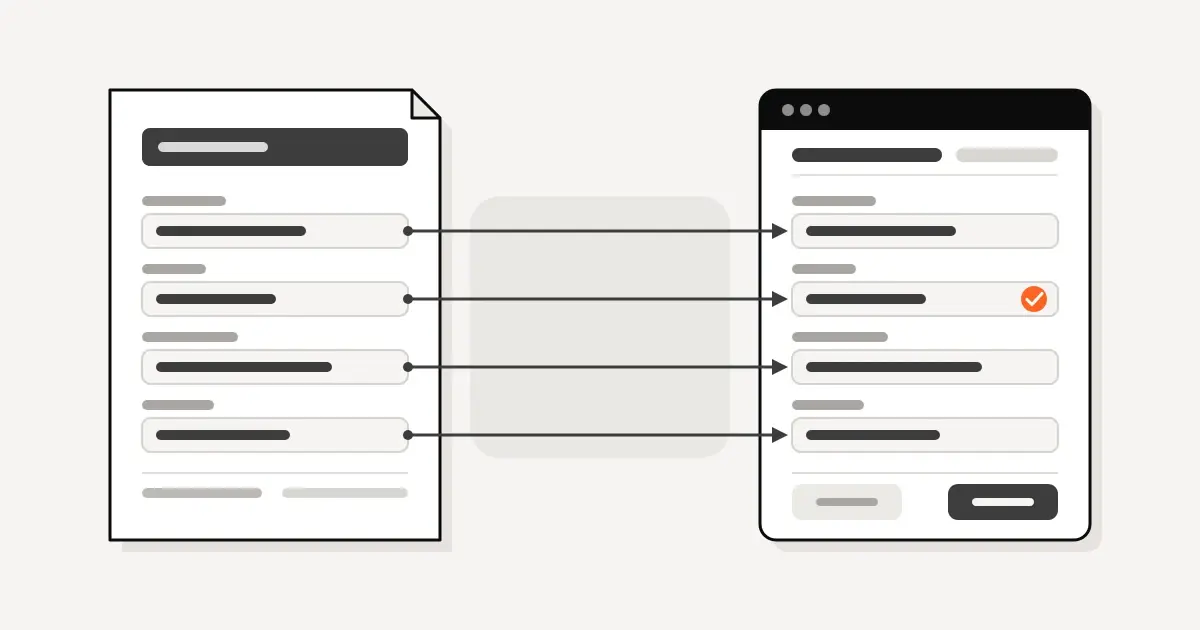
Yes, you can automate data entry. Repeat data entry is often a good candidate when it follows a pattern, with a human check where errors cost money. The jobs that automate best are the ones where the same kind of data comes from the same kind of source and goes to the same place. This article shows how to automate data entry step by step, starting with how to pick the right task and how to time it before you change anything.
Can you automate data entry?
For jobs that repeat in the same way, yes. If a person retypes numbers from a PDF into accounting, copies an email into the CRM, or moves rows from a spreadsheet into another system, a tool can probably do it.
Not every job is worth automating. Some jobs change shape every time. Some happen once a month. For those, doing it by hand may be the better choice. The sections below show how to tell which is which.
One rule applies to all of it. If a mistake costs money, a person should check the result before it is final.
Which data entry is a good candidate
A good candidate has three traits.
- Same source format. The data arrives the same way each time. It could be one kind of PDF, one form, one email template, or one spreadsheet layout.
- Same destination. It goes into the same fields in the same system.
- It happens often. The more runs per week, the more time you get back.
Good examples include invoices from regular vendors, intake forms, signed documents with the same fields, and contact details moving from email into a CRM.
A poor candidate looks different.
- Every document has a different layout.
- The right answer depends on judgment.
- The task happens a few times a year.
- The source data is already wrong, and no one trusts it.
If the source is a mess, fix the source first. Automating bad data only moves bad data faster.
How to automate data entry, from simplest to most custom
Start at the top of this list and move down only when you need to. Each step costs more effort than the one before.
- Fix the form at the source. If staff retype customer details from a paper form or an email, ask whether the customer could enter them once, in the right place. A web form can write straight into your CRM when it is set up to. We build sites too. See our web design page.
- Use native integrations between tools. Many accounting, CRM, and email tools connect to each other already. Check the settings of the tools you pay for before building anything new.
- Use an automation tool between apps. When two tools do not connect directly, an automation tool can pass data between them. When a form is submitted, create the record. When a deal closes, create the invoice. These work best with fixed rules.
- Use AI document processing. AI document processing reads PDFs and emails, then extracts, classifies, and summarizes the data. It handles documents that are similar but not identical, where fixed rules break. It puts the data in your CRM or accounting system, and it flags anything it is unsure about. Document processing is one of the things we build. See our AI work.
- Build a custom internal tool. When your process is unusual, a small custom tool may fit better than stretching a product. It can pull from several sources, apply your rules, and show a person a review screen.
If your CRM is part of the problem, see our CRM setup and optimization work.
For how a contractor's records can be set up once the data arrives, see CRM for general contractors. Colin Singleton runs most of our CRM and custom software builds himself. You can meet the rest of the Conduit team.
The baseline worksheet
Before you change anything, measure. Without a starting number, you cannot tell whether the change worked.
Step 1. Pick one task. Choose a single job, such as entering vendor invoices or logging new leads. Do not time everything at once.
Step 2. Write down the basics.
- Task name
- Where the data comes from (PDF, email, form, spreadsheet)
- Where it goes (accounting, CRM, other)
- Who does it
- How many times a week it happens
Step 3. Time 10 runs. Have the person doing the task note the start and end for each run. Use a stopwatch or a phone timer. Include time spent finding the document and fixing mistakes.
Step 4. Note errors. For each run, write down any errors found, and whether someone caught them before or after they reached the system.
Step 5. Note who does it. If more than one person does the job, time each person. Speed can differ.
Use a simple table like this.
| Run | Minutes | Errors found | Who did it |
|---|---|---|---|
| 1 | |||
| 2 | |||
| 3 | |||
| 4 | |||
| 5 | |||
| 6 | |||
| 7 | |||
| 8 | |||
| 9 | |||
| 10 |
Step 6. Work out the average. Add up the minutes and divide by 10. Note the longest run too. The average shows the typical cost. The longest run shows how bad it gets.
Step 7. Multiply by frequency. Average minutes times runs per week gives you the weekly time cost of this task. That is the number you are trying to reduce.
Keep this sheet. You will use it again after the change.
A DFW contractor example
A DFW contractor's accounting work took each person 45 minutes on average (some up to 90); Conduit got it down to 10 minutes.
What to keep human
Automation should take over the typing. A person should keep the decisions. Keep a human check on these items.
- Approval of amounts. Any amount that will be paid, billed, or committed should be seen by a person before it is final.
- New vendors and new customers. The first time a name appears, a person should confirm it is real and correctly entered.
- Anything odd. A document that looks different, a number far from normal, or a missing field should go to a person. A good setup flags these automatically rather than guessing.
- Final sign-off in legal or financial matters. The tool prepares. A person with authority approves.
A simple pattern works well. The tool enters the data and marks each record as clean or flagged. A person reviews the flagged records, and spot checks a few clean ones.
How to roll it out
Do not switch everything at once.
- Start with one task. Use the task you timed. Keep the scope narrow.
- Run it side by side. For a few weeks, let the old process and the new one both run. Compare the results line by line.
- Log the differences. Every mismatch tells you something. Fix the cause, not just the entry.
- Switch over. When the results match and the team trusts it, retire the old way. Keep the human checks in place.
- Time it again. Use the same worksheet. Compare the average and the longest run to your baseline.
- Pick the next task. Repeat the cycle.
FAQ
Can you automate data entry completely? For many tasks you can automate the typing. Where errors cost money, keep a person checking the result.
What is AI document processing? It is software that reads documents such as PDFs and emails, then extracts, classifies, and summarizes the data. It sends the data to the system where it belongs.
What data entry should I not automate? Skip tasks that rarely happen, tasks where every document looks different, and tasks that depend on judgment. Also fix bad source data before you automate it.
How do I know it worked? Compare against your baseline. Use the same timing method before and after, and track errors as well as minutes.
Where do I start? Pick one repeated task. Time 10 runs. Make one change. Time it again.
Book a time with Colin
Book a 30-minute call with Colin about the AI tool or CRM you already use. Bring the task you timed, and we will look at which option fits. Book a time with Colin.

Colin has spent five years building and running the CRM inside a major Dallas–Fort Worth general contracting firm. He started Conduit to bring the same systems to owner-operated trades and contractors.